Just upgraded from Windows 10 Pro to Windows 11 Pro. Went fine , just took forever. Everything seems to be working fine except CCleaner 6.39 when clearing the Firefox cache in Custom Clean. It works , but takes 5+ minutes where it used to only take 20 seconds or so for the same size cache under Windows 10. All other cleanings in Custom Clean work fine including other browser caches. Any clues?
As it’s presumably a new install of Firefox then you may want to check your Ffx settings? (As I recall they can be slightly different for 10 and 11.
Alternatively if Firefox was copied across by the Win 11 Upgrade then it may not have copied quite correctly, In which case I’d look at ‘Troubleshoot’ on the Firefox menu.
PS. I got a new laptop for Win11 and cleaning the Firefox cache is faster for me than it was with Win 10.
If you have upgraded then I would also think about if your existing CPU & RAM are quite up to it?
(I upgraded an ‘unsupported hardware’ machine to Win11; sucessfully but the old processor was just too slow with 11, so I put it back to 10 which runs much faster on it).
Will check out the troubleshoot option. The system was upgraded from 10 to 11 and so far , the Firefox issue is the only one. Not a processor or RAM issue - Intel i3 3.6 GHz with 8 gigs RAM.
Tried the troubleshoot option , but found nothing to help. tried uninstalling both CCleaner and Firefox and reinstalling. The issue still exists. Besides the cache , it also has the same effect on clearing cookies. The slow speed is not only in CCleaner , but also in Firefox. Not sure where to look next.
If Firefox itself is also being slow (but no other apps are) then it sounds like the issue does lie in Firefox.
If troubleshoot didn’t help then the next step to try would be a Firefox refresh, which creates a new profile for you while keeping important information from the old one. (the profile is where the caches etc. are saved).
Have a read of this and note that extensions and add-ons will be lost, and some settings reverted to default:
If that doesn’t work then consider a total uninstall and reinstall of Firefox?
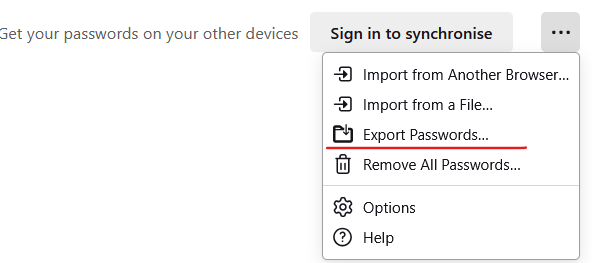
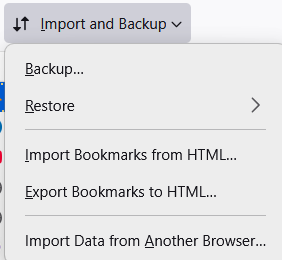
(Saving your paswords etc. to files first so you can import them to the reinstall)
Tried a refresh. Will see how it goes. In case it does not and a complete uninstall is needed , will the file in the settings saved by the refresh restore the settings to the fresh install?
That’s not something that I’ve ever tried so wouldn’t know. However I don’t think that it would.
(There again it could be one or more of those settings that is the cause of the slowness).
I was meaning exporting your saved passwords and backing up your bookmarks from their settings pages so that you can import/restore them to a new install:
Gotcha. Reinstalling is not something I have ever had to do either.
Hi Jeff_M:
An uninstall and reinstall of Firefox from Settings | Apps or Control Panel | Programs | Programs and Features should not delete Firefox profile data such as bookmarks and passwords, but backing up that data before starting is always a good practice just in case something goes wrong.
See the Mozilla support article Troubleshoot and diagnose Firefox problems.
When you reinstall Firefox (Step 4 of that article) this only reinstalls the program files in the installation folder at C:\Program Files\Mozilla Firefox, but “this process will not remove your Firefox profile data (such as bookmarks and passwords), since that information is stored in a different location” at C:\Users\yourusername\AppData\Roaming\Mozilla\Firefox\Profiles.
When you refresh Firefox (i.e., restore your Firefox profile to its default state - see Step 5 of that article),"your bookmarks, browsing history, open tabs, windows, passwords, cookies and web form auto-fill information will be saved. However, your extensions and themes will be removed and your preferences will be reset”.
When you create a new Firefox profile (Step 6 of that article) your personal Firefox profile data like bookmarks and passwords will be deleted. If you neglected to back up that data in a safe location before starting (i.e., so you can easily import this data back into your new profile) you may still be able to recover this data from your old Firefox profile.
Dell Inspiron 15 5584 * 64-bit Win 10 Pro v22H2 build 19045.6218 * Firefox v142.0.0 * Microsoft Defender v4.18.25070.5-1.1.25070.4 * Malwarebytes Premium v5.3.7.209-139.0.5357 * Macrium Reflect Free v8.0.7783 * CCleaner Free Portable v6.39.11548 * HDCleaner Portable 64-Bit v2.091
1 Like
Backed up the bookmarks and passwords , then uninstalled Firefox. reinstalled and accessed a few pages. Closed Firefox and opened CCleaner to test the cleaning of the cache. Still slow as molasses. So , that was not the fix.
Mmm, not sure why it’s being so slow for you.
I assume that it’s already a reinstall of CCleaner, or was that carried over in the Windows Update.
Another suggestion, set Firefox itself to clear cookies etc. on closing?
One other thing I do recall can happen, are you running CC straight after closing ffx? If so then see what happens if you give it 30 seconds or so before running CC. I’ve seen it where ffx can be slow to close and CC is waiting for it to fully close before cleaning.
Ccleaner was also uninstalled / reinstalled. I always wait until Firefox is not shown in Task Manager before trying to clear the cache. The slowness issue is also still present in both Ccleaner and Firefox when clearing the cache.
I’m at a bit of a loss other than if Firefox itself is slow cleaning the cookies/caches then it does appear to be an issue with your Firefox installation.
I just tried turning off the automatic cleaning of Firfox in the Firefox settings, then closed it, and ran a Custom Clean.
It took about 3 seconds to do the full clean:
(I have a 12th Gen Intel Core i5, with 8GB DDR5 RAM in this laptop).

How many and what size of files does yours report as being cleaned for Firefox?
Can you post a screenshot similar to the above so we can see what you have selected to clean for Firefox and what the results are.
And just to be sure, this is the standard Firefox, v142.0.1, and not ESR or some other variant?
Perhaps a bit off the wall but try running Windows built in DisK-Cleanup, using ‘Run as Administrator’.
Note that if you haven’t run it recently then it will probably take a while over ‘Windows Update cleanup’ but let it finish.
Then see if things have speeded up when cleaning your Firefox.
Both Firefox and Ccleaner Free were uninstalled , system rebooted , and then freshly installed yesterday. Firefox (142.0.1) was then used to access a bunch of pages with no extensions yet installed. Closed it and made sure it was gone in Task Manager before opening Ccleaner to see if the issue still existed. It did - it took over a minute for Ccleaner to clear the Firefox cache which had less than 500 files. The extensions were then installed.
Tried the disk cleanup and cleared what was selected , but left the prior Windows 10 pro installation alone as I only upgraded a few days ago.

The screenshot is of Ccleaner starting from a clean slate after 2 hours of being online. When Ccleaner cleared just the Firefox cache , it took 505 seconds (8 minutes 25 seconds). Prior to upgrading to Windows 11 Pro , under Windows 10 Pro , clearing a cache that size took 30 seconds at best.
I would consider even 30 seconds a lonnng time for Custom Clean to clear Firefox.
One thing that strikes me there is just how many files were in your cache, and the number of cookies that you had.
Compare it to.mine above which were from about 30 mins browsing after I had turned off the Firefox ‘Delete cookies and data when Firefox closes’.
Do you normally have lots of tabs open?
Do you have Firefox set to block non-essentila and 3rd party (marketing) cookies?
Are you using an Adblocker?
I always have at least several tabs open. Cookies are accepted as some sites won’t work if marketing ones are blocked. I clear them periodically. Same as I did under Windows 10. No adblocker as most of the contest sites I use require the ads be viewed. Again , same settings as under Windows 10.
Having worked in computers most of my life (will be 70 in January) , first with big box systems and eventually PCs , this has me puzzled as well. The only change to the system was upgrading from Windows 10 Pro to Windows 11 Pro over the weekend.
I understand the issue with some sites and cookies, when I come across one that I’ll be visiting again I make it an exception in my adblockers. (I use Adblock, and Malwarebytes Browser Guard which is much more than just an adblocker I suggest that you take a look at it).
Windows works in mysterious ways at times, particularly following updates and the change from 10 to 11 was a major update.
I’ve had things slow down after a monthly Patch Tuesday update and then go back to normal again following the next Patch Tuesday, or the one after that.
In your case Windows 11 may just be taking time to settle down for you, often with such an update it will still be pulling system files in, or installing/enabling already downloaded system files for a month or so.
It’s one of the reasons that I suggested running Disk-Cleanup as administrator and letting it do ‘Windows Update cleanup’, that can often make it do some of the update tasks still needed, while ‘compacting’ those it isn’t quite ready to do yet.
You can also find the equavalent in Settings > System > Storage > Cleanup recommendations.
Here’s mine showing I have only 8 KB of update files which can be removed (only 8 KB because I run Disk-Cleanup every Sunday, so the 8 KB are from small updates since last Sunday, probably Defender definitions).
Yours will no doubt say more than that can be cleaned.

If you don’t want to try either of those yet then it can sometimes help that process to let your computer sit ‘idle’ for a few hours following a major update, Windows does a lot of that kind of work only when the machine is idle.
Another thing you could try is running SFC /SCANNOW just to check that the system itself is installed OK.
(PS. I wouldn’t run DISM at this stage, I’ve found it prone to sticking at 62.3% with my Win 11, others have reported the same and you’ll find plenty about it online all sticking at 62.3%).
Other than that I’d suggest gritting your teeth and waiting until after next Patch Tuesday update (evening of 2nd September) and see how things are running for you after that.
Sorry that I couldn’t be of more help.
Thanks. Windows can be a pain at times. I suspect that it is doing as you say - settling in. I see things changing almost daily. Will just have to see how it goes.
Ran the cleanup recommendations and all it found were normal things that I clear daily and the previous Windows installation backup. I want to hold on to the latter for a bit - not even a week since switching to Windows 11.
A tip for the future.
Before doing any kind of large update it’s a good idea to make a Full System Image backup of your system to an external drive. Using Macrium Reflect, Easus, Aomei, or simlar.
Many people make such a full image at least once a week, just in case. (I use Macrium weekly and before large updates).
When you have such a full image it’s very easy to put your whole computer back exactly as it was when you made the image.
Hi Jeff_M:
That might indicate you have corrupted data in your Firefox profile.
If you’d like to continue troubleshooting go to Help | More Troubleshooting Information (or type about:support in your address bar) in Firefox and look for Profile Folder under Application Basics. Make note of the hidden folder location and name (a random string of 8 characters) of your current default Firefox profile - it should be something like C:\Users\<yourusername>\AppData\Roaming\Mozilla\Firefox\Profiles\xxxxxxxx.default-release.
As an extra precaution, click the Open Folder button and back up that profile (i.e., the entire xxxxxxxx.default folder) to a safe location like a removable USB stick as instructed at Back up and restore information in Firefox profiles. I would also create a fresh backup of your bookmarks as a separate .json file (Bookmarks | Manage Bookmarks | Import and Backup | Backup) to the same location.

Then create a new Firefox profile (Step 6 of Troubleshoot and diagnose Firefox problems) and add the uBlock Origin extension for extra content blocking, but do not import your bookmarks or any other data from your old profile or add any other browser extensions. Use Firefox for an hour or two with all its default settings and then manually clear your cache from within Firefox (Step 2 of that article - i.e., History | Clear Recent History | Everything) and see if that speeds up your cleaning time. ***
If that clears your cache quickly use your browser for another hour or two, close Firefox, and then clear your cache again using CCleaner and see how long it takes.
If your cache clearing is still slow in either Firefox or CCleaner post back and let us know what antivirus and/or other security software (e.g., Malwarebytes Premium) you use that loads at Windows startup.
*** NOTE: If the problem persists in your new Firefox profile you can switch back to your old Firefox profile using the built-in Profile Manager (about:profiles). Each Firefox profile stores its own set of bookmarks, passwords, extensions, and settings so nothing should need to be restored once you’ve switched back to your old profile.
————–
Dell Inspiron 15 5584 * 64-bit Win 10 Pro v22H2 build 19045.6218 * Firefox v142.0.1 * Microsoft Defender v4.18.25070.5-1.1.25070.4 * Malwarebytes Premium v5.3.7.209-139.0.5357 * Macrium Reflect Free v8.0.7783 * CCleaner Free Portable v6.39.11548 * HDCleaner Portable 64-Bit v2.091