It seems that every time CCleaner updates, it turns back on various default settings like “nag me about other stuff”, “share my usage data with the authors”, “notify me of things that could be cleaned”, etc.
Stop that.
Updates MUST RESPECT the user’s existing settings. If we turned off “nag me”, “remind me”, “offer me”, etc, LEAVE THEM OFF.
you can resolve the problem by not tinkering with, by not using, INI files for ccleaner’s settings.
updating ccleaner has never changed the settings that i use.
I don’t “tinker with”, nor use, INI files for CCleaner’s settings. The only thing I sometimes do that might have something to do with this is to update CCleaner automatically using Ninite Pro, however Ninite’s updaters use installers’ default silent settings, which suggests that, as I complained about, CCleaner - by default - will re-set certain settings rather than respecting the settings the user had previously chosen.
I believe that your Ninite Pro is doing an in-place reinstall of CCleaner rather than just an update.
That reinstall would then reset the settings to their defaults, unless you do use the .ini file.
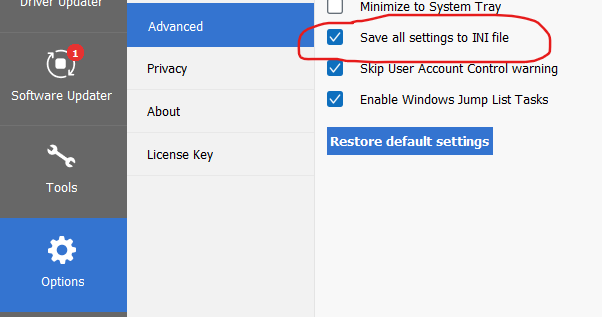
If you tick this option and leave it ticked then your changes to the settings will always be saved to a ‘ccleaner.ini’ file and will be retained as you have set them across updates and even across in-place reinstalls.
Just tick it and leave it ticked - your chosen settings should then be preserved across updates and reinstalls.
1 Like
OK. so the ninite installer is the problem. the solution is to not use the ninite installer to install or update ccleaner.
I have communicated with Ninite; their policy is to run the updaters with default “update whatever is in place” settings, not to uninstall/clean-reinstall. And I don’t encounter this issue with other software that Ninite updates.
To get clarity, I’ve just reached out to Ninite to get the exact command line that Ninite uses to launch the CCleaner update. I’ll post back here when I have it.
No I agree that Ninite does not do an uninstall/reinstall, and I never said that they did.
What they do is an in-place install of the latest version (ie. no uninstall first).
An in-place install is how I always update my own CCleaner installs, I just install the latest version over the top of my current CCleaner - so I know exactly how it works.
Unless you have a ‘ccleaner.ini’ file then an in-place install will give you the default CCleaner settings.
It will be interesting to see their code if you get it.
However I fully expect to see it fetching the CCleaner installer and using it to do an in-place install over the top of your existing CCleaner..
Here is Ninite’s reply:
We download the installer from their CDN:
https:// [the form won’t let me post links, so I’m inserting junk in the URL here] bits. avcdn. net/productfamily_CCLEANER/insttype_SLIM/platform_WIN_PIR/installertype_ONLINE/build_RELEASE
Then we run it with /S
So, I did the same - I downloaded from that link, and ran it with /S
It reset SOME settings - specifically, “Add “Run CCleaner” option to Recycle Bin…” and “Add “Open CCleaner” option to…”; though it did not reset the “Only delete .. 24 hours ..” settings,
Okay, scratch all of that. Probably unrelated to Ninite or how I’m updating, it seems that 6.38 has a bug in that the “Add “” option”… settings don’t seem to be able to be turned off at all. Even in the same run of CCleaner, un-ticking those boxes and navigating to another settings screen and then back again, the options return to being checked.
(However, this time, it did NOT reset any other options, as far as I notice).
Anyway, Ninite downloads that installed .exe, and runs it with /S, and I propose that this should not change ANY user settings. Why would it be appropriate for that to re-set any user settings?
when i update ccleaner, i install the new version on top of the old version and, when i do that, none of my settings are changed.
i don’t use the INI file for saving my settings, so my settings are saved as regkeys.
Yes, as I expected that is an in-place install (over the top of the old one without uninstalling) of the new CCleaner version.
(The command line “/S” option that they add tells it not to show you the install dialogue but to install it ‘silently’).
An in-place install will reset your custom settings to default unless you have a INI file.
Ok, this is different from what you said in your original post here.
Could you give more details? ie. which “Add” in which Option are you trying to use?
Do you mean the “Add” in the ‘Include’ or ‘Exclude’ sections? (maybe not because those don’t have boxes to untick).
Could you post a screenshot of exactly what it is that you have set which you say then dissapears if you change screen.
Yes, what I reported in my last post is different from my main concern, which remains.
So, there are two things going on here.
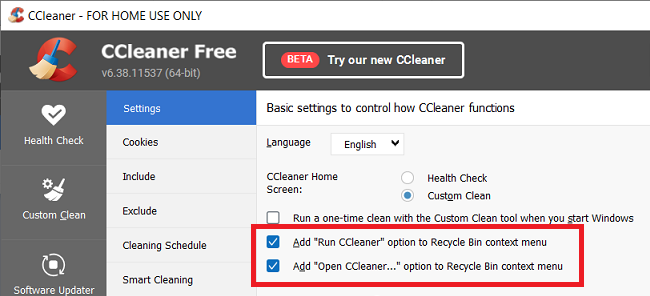
#2 The recent thing, screenshot:
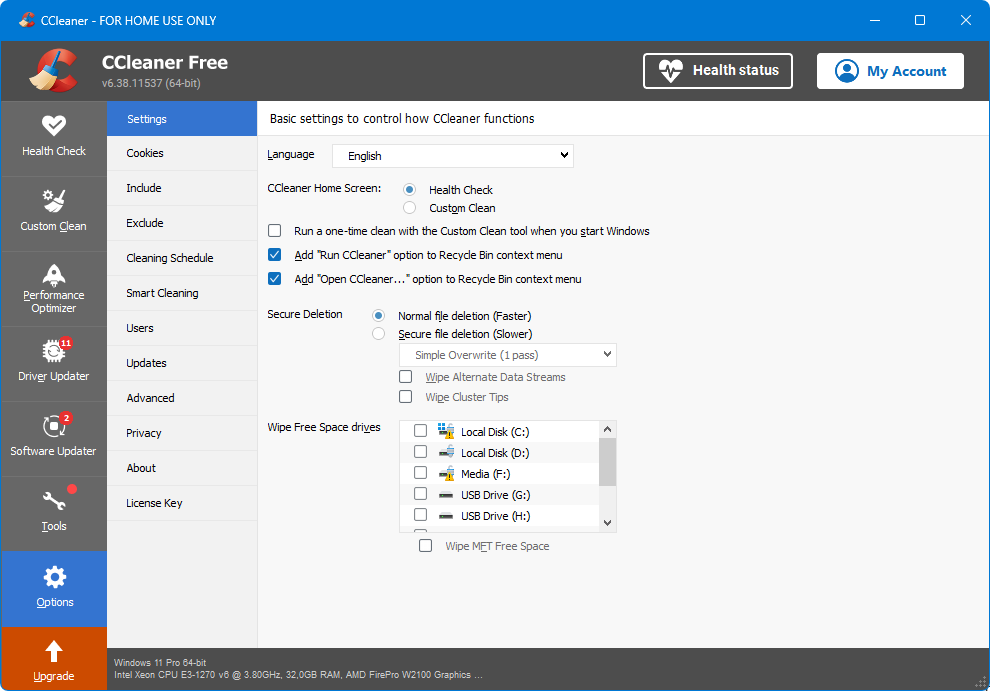
The “Add “Run CCleaner” option …” options, which in this screenshot are checked; if I uncheck those and navigate away from this settings page and then return to the page, they are again checked. I’d never seen this before; this is new after updating to 6.38 recently.
#1 The original thing, which we’ll return to after the new issue is addressed; though I still insist on my question/ proposal: If the program is already installed, and its installer-updater is executed (particularly in /S silent mode), NO settings should be reverted unless there is a significant change in features which truly requires changing the user’s previously-expressed preferences.
Thanks, let me have a play about with those particular settings (I usually have them disabled).
However those two settings are related to your doing updates using Ninite.
That’s because as well as being option there in CCleaner they are also pre-ticked options in the installer. YOU are not seeing those pre-ticked options because of Ninite using the /S switch.
So when Ninite does the ‘silent’ install then it always switches them on again, and because it’s ‘silent’ then you don’t get an option to untick them and prevent it from doing so:
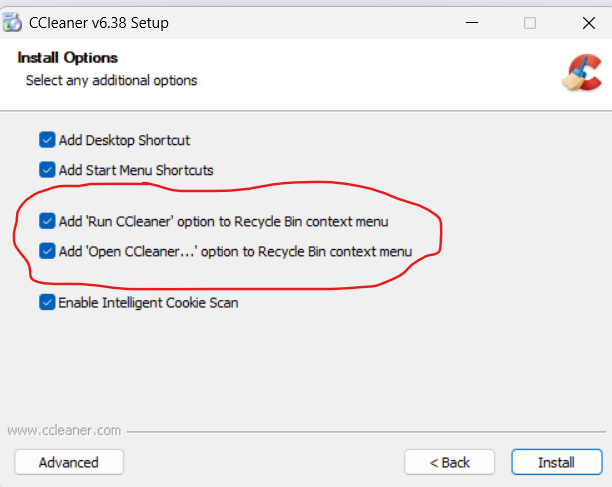
I know that isn’t quite what you are describing though, ie that they retick themselves if you change screens, so I’ll look into that when I get a chance - but be aware that using the Ninite wilh a silent install is always going to turn them on.
(However if you do have a ccleaner.ini then that can turn them off again for you).
I have to reiterate once more what I have been saying all along:
If you enable the option for CCleaner to Save settings to an INI file, and leave it ticked, then none of what you describe would be happening.
I understand what you’re saying - “it works that way”. Please answer my question:
Why should an installer EVER re-set user preferences by default, instead of respecting/keeping existing user settings by default?
When you install any software it is installed with it’s default settings.
When you update something it will (usually) keep your previous setting.
An install is different to an update.
Your confusion is because Ninite are telling you that they are updating CCleaner when they are not updating at all but are instead installing the new version.
Ninite themselves clearly say so in the quote that you posted above:
They are using the CCleaner installer to do an install of the new version (not an update).
Here is another option for you, tick this in CCleaner:
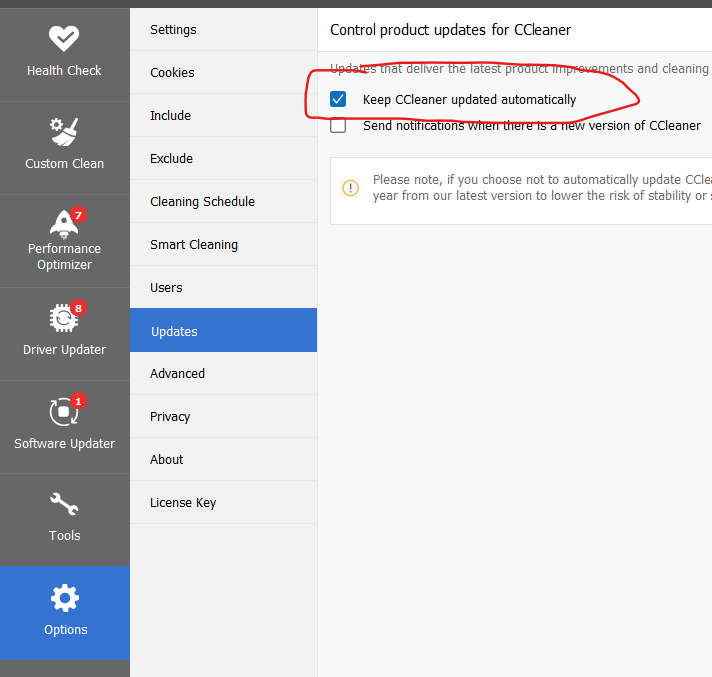
If you tick that then CCleaner will update itself automatically to a new version when it’s available, keeping your settings.
If you use that then because CCleaner has automatically updated itself to the new version (keeping your settings) then Ninite will not try to install the new version.
(If Ninite should offer you a new CCleaner version then ignore it, and let CCleaner itself do the update)
Er, it feels like you’re standing on semantics, while I’m looking at it from the user’s point of view. But, anyway:
What option should which downloaded installer/updater file be used, to UPDATE withOUT changing any user preferences?
Simple, as I have been saying it’s best to upgrate CCleaner using CCleaner and not Ninite (or any other updater).
You have a choice of 3 options for doing that in CCleaner (and one option for if you do still want to use Ninite for some reason):
- Either by selecting that ‘Keep CCleaner updated automatically’ option.
- Or by using the ‘Send notifications when there is a new version of CCleaner’ option, and updating from the notification.
- Or by using the ‘Check for updates’ at the bottom right of CCleaner which will tell you if there is a newer version and if there is one has a button to do the update.


However if you do want to keep using Ninite (or any other updater) then selecting the option to ‘Save all settings to .INI file’ will ensure that your settings are preserved across any reinstall that they do.
I feel like I’m talking to a wall, or that you have some ulterior motive, in wanting to NOT allow central management to do a good job of centrally managing updates. Why do you refuse to answer the question of why you think it’s a good idea to EVER reset user preferences, why you resist the idea of making it possible for a device management solution to manage the updates properly? The folks at Ninite told me that they were thinking of delisting CCleaner because of the aggressiveness of CCleaner’s touts, and you’re playing right into that impression.
Hi @redwolfe_98 :
Are you able to reproduce the second glitch that OP libove described in their 12-Aug-2025 post <above> about the lack of persistence of their “Add to Recycle Bin” settings?
I tested today with my CCleaner Free Portable v6.38 and couldn’t reproduce that glitch, but all my custom settings are saved in ccleaner.ini by default so my results don’t really provide much useful information. I enabled the two “Add to Recycle Bin” settings at Options | Settings as shown below and closed CCleaner, and I was able to confirm those two options were added to the right-click context menu of the Recycle shortcut on my Win 10 desktop. Then I opened CCleaner, disabled those two options and moved away from that settings page (I ran a Custom Clean), and when I went back to Options | Settings those two settings were still disabled as expected.
It sounds like you were able to perform an over-the-top install to update to CCleaner v6.38 (I presume by running ccsetup638_slim.exe or some other full offline installer downloaded from the official builds page) and didn’t lose your settings even though Options | Advanced | Save All Settings to INI FIle was DISABLED. If that is correct then I’m not sure why a silent install of CCleaner by Ninite with the “/s” switch would cause libove to lose their custom settings.
If you can’t reproduce libove’s second “Add to Recyle Bin” glitch that might indicate that there is a problem with the permissions for the CCleaner registry entries in libove’s registry (e.g., a possible corruption of some registry values at HKEY_LOCAL_MACHINE\SOFTWARE\Piriform\CCleaner and/or HKEY_CURRENT_USER\SOFTWARE\Piriform\CCleaner) that is preventing their settings from being saved properly.
Hi @libove :
What is your Windows OS and antivirus? Is your CCleaner software installed in the default folder at C:\Program Files\CCleaner, and are you using a Free or Professional edition of CCleaner v6.38?
Dell Inspiron 15 5584 * 64-bit Win 10 Pro v22H2 build 19045.6093 * Firefox v141.0.3 * Microsoft Defender v4.18.25070.5-1.1.25070.4 * Malwarebytes Premium v5.3.6.205-138.0.5346 * Macrium Reflect Free v8.0.7783 * CCleaner Free Portable 6.38.11537 * HDCleaner Portable 64-Bit v2.091
Well, this is interesting … on a second computer, still running v6.36, I also cannot change the status of the two Settings options “Add “Run CCleaner” option to Recycle Bin context menu“ and “Add “Run CCleaner …” option to Recycle Bin context menu“, but the precise situation is different: on this second system, those options are UN-checked (which is how I like them), but if I CHECK them and navigate away and then back to the Settings page then the CHECK disappears.
So, in both cases, I cannot change what is already there, rather than that I cannot set one or another specific value, and it happens on two computers with two very slightly different versions of CCleaner installed. Make that three computers.
This strongly suggests that registry/permissions problems are in play.
All computers are Windows 11 24H2 Pro 64-bit. All are linked to my same Microsoft account. On all that account is NOT in the Administrators group (so I frequently type the password of a local administrator account when admin actions need to be taken).
On another piece of software in the past I’d found that using UAC elevation with a different local admin account also resulted in the ownership or permissions of the app’s registry settings becoming unchangeable to future actions (despite elevation).
So, I did the following:
- I uninstalled CCleaner
- I (manuall, since CCleaner isn’t there
 ) cleaned both the file system and the registry of anything containing the letters “ccleaner”
 - I reinstalled CCleaner (v6.38), as my normal (unprivileged) user, responding to the UAC elevation prompt.
- I ran CCleaner. Make that, I tried to run CCleaner. The CCleaner.EXE process would briefly appear in Task Manager and then exit; it left no Windows System nor Application Event Log entry; the CCleaner window never appeared. Repeat, repeat, the same.
- I ran CCleaner elevated (That is, as me - unprivileged - I right-clicked and selected Run as Administrator). That did bring up the CCleaner first-run experience. I completed that, set my preferred configuration settings, and exited CCleaner.
- I ran CCleaner (again as me, unprivileged, not elevated). It DID open. But the settings were NOT the same as the settings that I’d set during the first-run experience that I’d gotten when I was forced to run CCleaner elevated the first time to get it to start at all.
- I twiddled settings, exited CCleaner, restarted CCleaner, and the settings DO seem to have stuck this time.
1 Like