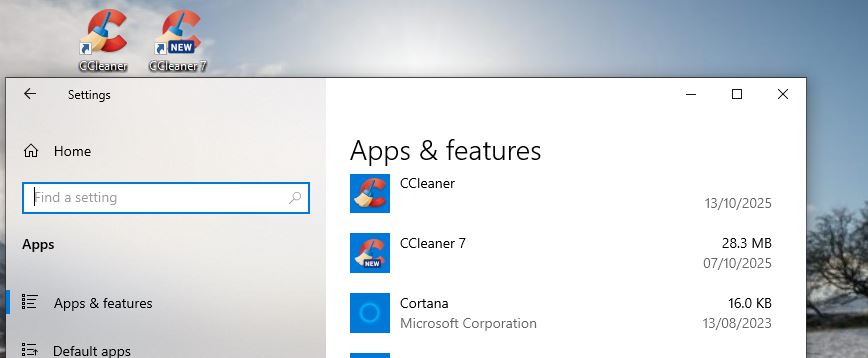
CCleaner will not open on my Windows 11 Pro PC, AMD Ryzen 7 7900X 8-core. I have a paid license for CCleaner Pro.
I just updated CCleaner to Version 6.x … since it won’t open, I can’t say what version I have. I tried installing Version 7, but it failed multiple times.
I tried updating CCleaner Pro and during the installation, I kept getting messages that Windows (Defender, I assume) was blocking access to folders claiming that as Administrator I didn’t have access to write to the folders. I corrected permissions on the affected folders to ensure I had access and tried a re-installation.
After the reinstall, CCleaner 6.x ran its full range of analysis and changes, but since then, it will not open. When I look at Task Manager, I show CCleaner CCleaner Prformance Optimizer Service and CCleaner Self-Extract Package 32 -bit are all running.
I don’t know what version is running, because I cannot get the app to open and display on my screen – even if I force close the three apps and try to open the EXE file without using the shortcut.
I also wanted to try and bypass this problem by downloading Version 7, but there is no link to manually download the update. When I tried to update through the CCleaner app the one time it opened, the installation of Version 7 failed.
I uninstalled and reinstalled the app, but the same problem happens: It opens once and never again.
If anyone from Piriform bothers to check these posts, I am very angry that there is no way to directly reach you anymore via the support page. When we pay annually for the app, we are paying for a working app and direct access to tech support. … or at least all my other app subscriptions function that way … and Piriform used to.
As you seem to be having problems with your current install then you might want to uninstall and start afresh - whatever version you currently have, *and from what you say it sounds as if you may have both v6 and v7 installed,*as you can see here it is possible to do that.
The first one on that page downloads an installer for CCleaner v7.
After installing it go to Settings>My Subscription and enter your licence key to register/activate it as Professional.
The second one downloads an installer for CCleaner v6.39.
For roll back instructions, including stopping it updating to v7 again, click this: How to Roll Back from v7 to v6.39
PS. All customers can now access a ‘Live Chat’ support service.
To start raise a support ticket by using this: Contact Form.
Once you submit the form you will be given a support ticket/ID number onscreen, with a summary of your request. Below that is the button to go straight into the ‘Live Chat’ where a virtual assistant will try to help you. If the AI can’t help then you will be passed to a real person.
Note - We have been told that you HAVE TO engage with the chat or you may not get a reply to your request form. (Seems an oddity to me, but that is what we have been told).
I downloaded the CCleaner 7 to install. Task Manager shows CCleaner Self-Extractg Package (32-bit) is running, but it is not running and no Windows related to its setup are displaying. TM shows 0% CPU, 2.6MB memory, 0 MB/s Disk and 0 Mbps for network.
As it seems to be CCleaner 7 that is causing the issues then I’d stick with v6.39 for a few months (at least). What I would do is:
End Task on anything ‘CCleaner’ that is running in Task manager.
Uninstall any CCleaner (6 or 7) that is showing as installed.
In File Explorer go to C:\Program Files and delete any CCleaner folder and any Piriform\CCleaner 7 folder.
Restart your computer.
Download the ‘Sunset’ installer and install CCleaner v6.39.